As a text editor and writer, although I think the "most efficient" working method is to "use a computer first if you can". For example, when I want to edit text on the high-speed train, I must open my laptop. There is no desk and I insist on using my mobile phone to edit, because the most complex word processing actions can be completed at the highest speed on a desktop computer or a mobile phone. Don't be obsessed with the portability of mobile phones.
But there are indeed situations where it is impossible or inconvenient to use a computer, such as riding in a car or attending a lecture without a table. At this time, some writing inspiration bursts out of your head, or you suddenly think of a certain document that needs to be modified, and you can use your mobile phone to write text according to the situation.
Because I am a standard text worker, I have been conducting in-depth research on various "high-efficiency writing tools" in computer toys, including software and apps. Among them, due to certain characteristics of Android, more "special editing functions" can be used on Android phones to achieve more comfortable, smooth and fast word processing.
Today’s article will use Android as the theme to sort out the best apps that can meet 13 types of mobile text writing needs. Most of these are also available on iPhone, but some are Android-specific.
Although I also own my wife’s retired iPhone for testing, one of the reasons why I have always felt that I can’t do without an Android phone is that Android’s “advanced editing tools” are very powerful.
1. Clipbook: Clip Stack
The powerful mobile scrapbook can remember the content I have copied before, so I can call it up and paste it at any time. Among the many scrapbooking apps on Android, I personally like "Cut Pile" the most because it is very fast, operates very stably, and is very convenient to call up from the notification menu or floating button. This is actually the most important feature for text work.
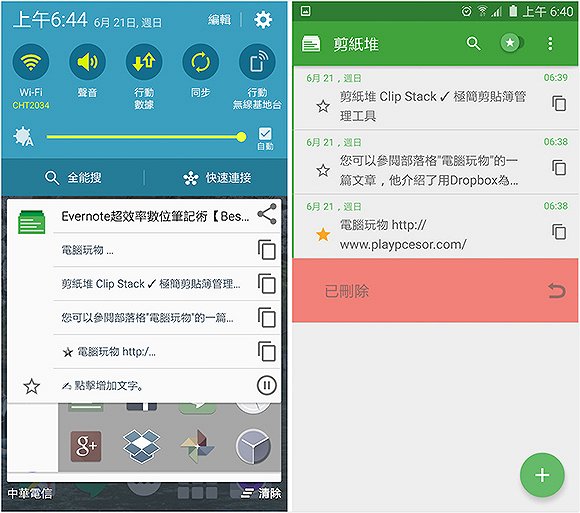
In addition, the paper-cutting pile can also be marked with some commonly used content (with an asterisk), so that I can use the asterisk to call out commonly used text content and paste it at any time, which can meet the fifth requirement mentioned in this article to a certain extent.
2. Professional editor: Inputting+
Why are the input fields in instant messaging apps so small? It is very inconvenient to type a long string of text. Why can't the text just modified be restored immediately? If you have these editing problems, the following tool is perfect for you.
Inputting+ is a small tool that is still installed on my Android phone. It can be said to be an advanced tool that professional editors will love. The functions I personally use frequently include:
- The input field in any app can be restored (Ctrl+Z).
- Input restoration can also be achieved across apps, such as restoring Evernote on FacebookEnter content.
- Search and replace in any app input field! Just like in word.
- You can also restore the content you just entered halfway if the app crashes or jumps out.
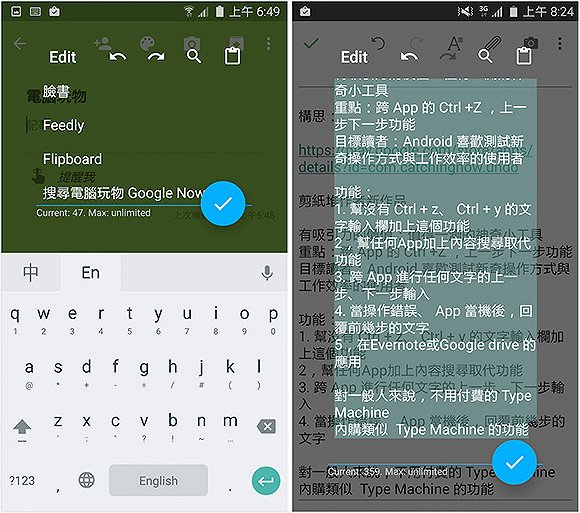
It is really an artifact-level function, and Inputting+ is perfectly integrated with the "paper-cutting pile" introduced earlier. It can call up items in the scrapbook faster when inputting.
Another thing I like very much is that the input field of a typical instant messaging or social app may only be one small line. Through Inputting+, it can be opened into a large input layout to make input and browsing smoother. These are good functions for improving text quality.
3. Content traceback: Inputting+, Type Machine
You think you will never make mistakes, but sometimes you accidentally press send to cancel, sometimes you press copy to paste, and sometimes you rearrange the web page, and all the typed content is gone. Not to mention that sometimes it’s even more embarrassing when the app crashes or crashes.
At this time, a content review tool is ready! I would first recommend Inputting+ mentioned in the second requirement, so that one tool can meet both needs.
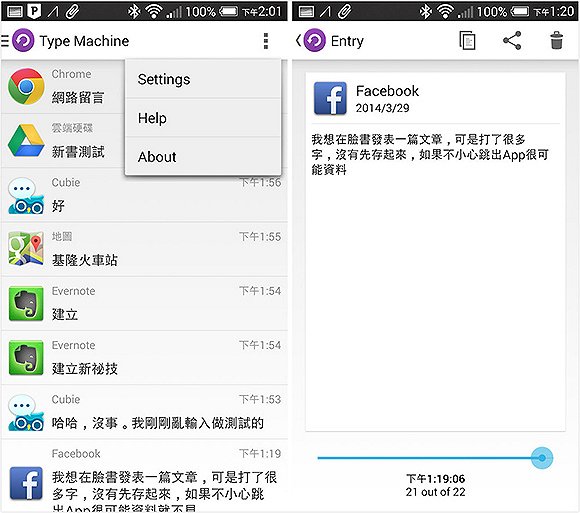
But you can also try Type Machine, an early content backtracking app I’ve been using for over a year.
They will "automatically record" all the content entered by the app except the password, so I can look back at any time.
4. Input method: Google input method, Super Phonetic 2.0, IQQI, Swype
I can type more than 60 Chinese words per minute on my Android phone without any problem (actually the biggest problem is that I can’t think of so many words to type), which allows me to quickly take notes and write drafts on the move.
For fast input, an easy-to-use input method is very important. Which one is not important is not important, because as long as you are proficient and can make good use of the input method function, you can actually speed up your input.
I personally like the "Google Zhuyin Input Method", which has several functions that can speed up input, including:
- Enlarged keyboard
- You can input both Chinese and English, no need to switch
- Punctuation marks can be mixed and entered without switching
- You can input phonetic notation directlyFirst letters to quickly select words
In addition, its word selection accuracy and speed are very good, and it is still my first choice.
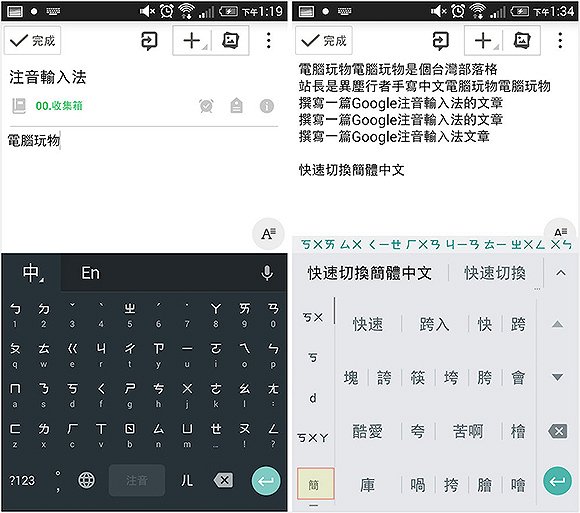
A Note: For a detailed introduction to Google Pinyin input method, please refer to the article AppSo (WeChat ID appsolution).
5. Repeated input of commonly used text: Clip Stack, Texpand
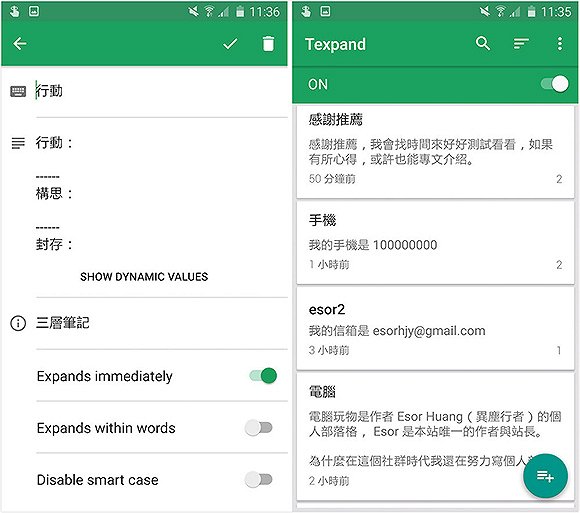
Sometimes I often need to enter text content in a fixed format. For example, each of my notes has a three-level note-taking method of "move, create, and save." For example, my personal contact information (used as a signature file). Is there a good tool for quick input at this time?
I actually use the "paper-cut pile" recommended in the first item of this article to solve this problem. I copy the commonly used content and mark it with an asterisk, so that I can quickly find and paste it in the future.
But there is a more professional and faster tool for advanced users, that is, the Texpand Android app. After setting it up, as long as you enter special keywords or the first few words of commonly used content, the complete commonly used content will be automatically entered, allowing you to "click" quickly.
6. Synchronize mobile phone text with computer: Join, Pushbullet, Alt-C
Sometimes I want to paste the content I just copied on my computer and paste it on my phone right away when I leave the office. Sometimes when I'm working in the office, I want to respond to messages on my phone directly from my computer without having to turn on my phone.
This is also a need to increase efficiency in text work on mobile phones. Among many similar tools, my personal favorite (and have already purchased) Join is the Android app. My most commonly used functions are:
- Respond directly to instant messaging and social messages on your mobile phone from your computer. Typing on a computer is definitely more comfortable.
- Copy text content simultaneously on your computer and mobile phone in both directions.
7. Paper scanning: Evernote, Tiny Scanner, Office Lens, Google Drive, CamScanner, Handy Scanner
"Paperless" is an inevitable trend in writing work, but this working method is not necessarily completely paperless, but means that the paper used during the move must be digitized during the filing stage. At this time, in addition to professional scanners, "paper scanning app" is also a must-have for text workers.
MyselfI usually use Evernote's built-in paper scanning function to transfer business cards or paper "after photo optimization and intelligent cropping" to Evernote, so that I don't have to collect and organize those post-it notes or handouts.
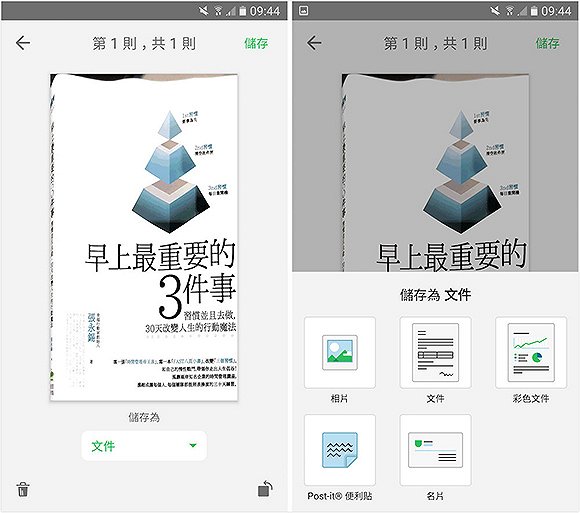
Of course, there are many other scanning apps that are worth making use of. Please click on the app name recommendations above to find what you need.
8. Convert handwriting to text: MyScript Smart Note
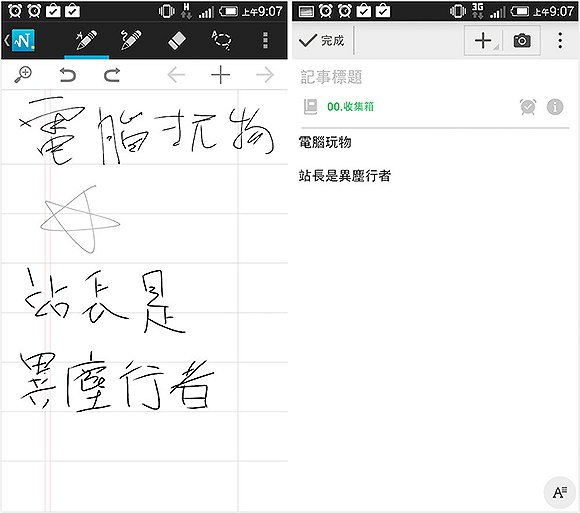
Basically, efficient input is still typing, but sometimes we really need to write by hand, or simply want to keep the handwriting font. It would be a convenience if we could convert the handwriting into text. At this time, MyScript Smart Note is still the best choice.
9. Office or document editing: Google Docs, Microsoft Office app
Of course, text work requires editing documents, PPTs, and forms. Because I mainly work on Google Drive, most of my text is solved by the Google text system. Even if I need to edit Office files, the current Google Drive series of apps can also handle it.
But if you want more professional Microsoft Office mobile editing needs, of course, just install the free Office app.
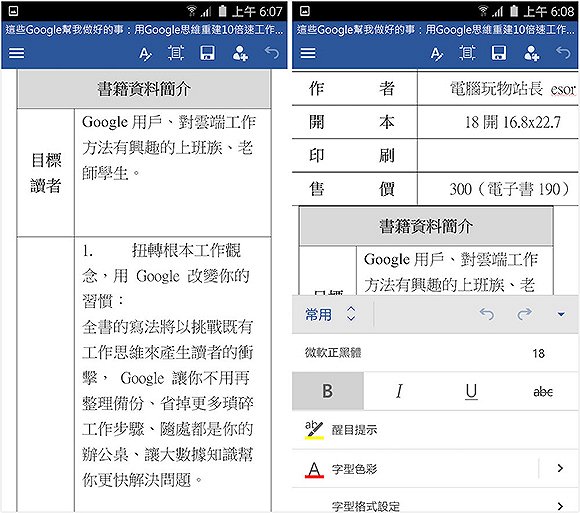
A’s note: Click here to see 12 mobile Office tips that will keep you one step ahead of others.
10. PDF editor: Adobe Acrobat Reader, Evernote
When browsing PDF files on a mobile device, there shouldn’t be much of a problem. Many mobile phones now have built-in PDF browsing functions. Otherwise, Google Drive mentioned above can also browse PDFs. But what if you want to mark up a PDF?
At this time, I would personally recommend Adobe Reader, a PDF editing and annotation tool. Others shouldThere are many more powerful options out there, but I've rarely delved into them.
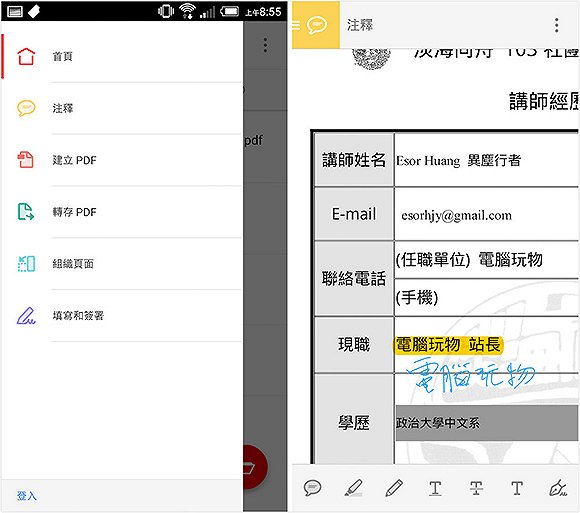
Because in fact, when annotating PDFs, the method I use more often is to use the built-in PDF annotation function of Evernote Professional to annotate files and take notes, which feels more flexible.
11. Sign and fill in the form: Adobe Fill & Sign
Some powerful PDF editing apps are more suitable for use on large screens such as tablets. It should be difficult to edit and annotate complex PDFs on mobile phones. However, sometimes when you just need to fill in some forms and signatures on PDFs, it would be much more convenient if you can quickly complete such text tasks on your mobile phone. The Adobe Fill & Sign above can meet such needs.
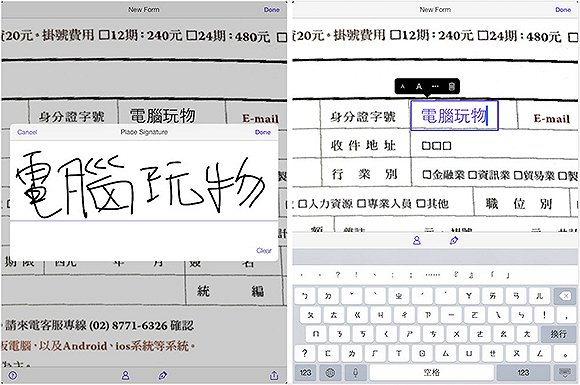
12. Notes: Evernote, OneNote, Google Keep
Note-taking tools are also indispensable for word workers, especially a note-taking tool that is powerful enough to be used as a knowledge base and database. I often introduce this part of computer toys, so I won’t go into details here.
13. Interference-free text input: Monospace, iA Writer
Finally, word writers also need a tool that allows them to calm down, allow themselves to type like a god, and enter a state of forgetful writing. This tool may vary from person to person. For example, I feel that I can write a draft calmly when I open Evernote.
But if you can't, then you may need another dedicated meditation writing app. There are many such tools, and my personal favorite is Monospace.
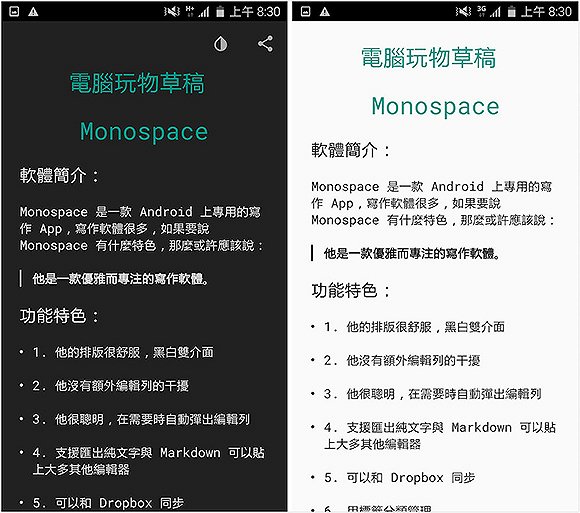
The above are the application methods and apps that I think are worth recommending based on 13 types of text needs and after long-term research on Android text input efficiency. Some of them may be techniques that you have not discovered "can be used this way". Maybe after you add them, your editing efficiency can be greatly improved on Android mobile phones or tablets!
The article is reproduced with permission from Computer Toys, original link: How to move documents quickly? 13 Android editing apps